Linking Time Sources
When you log flight hours, BetterPlane updates the tach or hobbs you entered and every component linked to it. If a component has no time source, its total time does not change.
BetterPlane auto-links new non-meter components to the first tach, or to the first hobbs when no tach exists. This happens during onboarding and when you add a component later. If your engine or airframe hours are not updating, the time source may have been cleared or the component may have been set to independent. Check the time source for each component and link the ones that are missing.
Linking an existing component
Section titled “Linking an existing component”- Open the aircraft and find the Overview card.
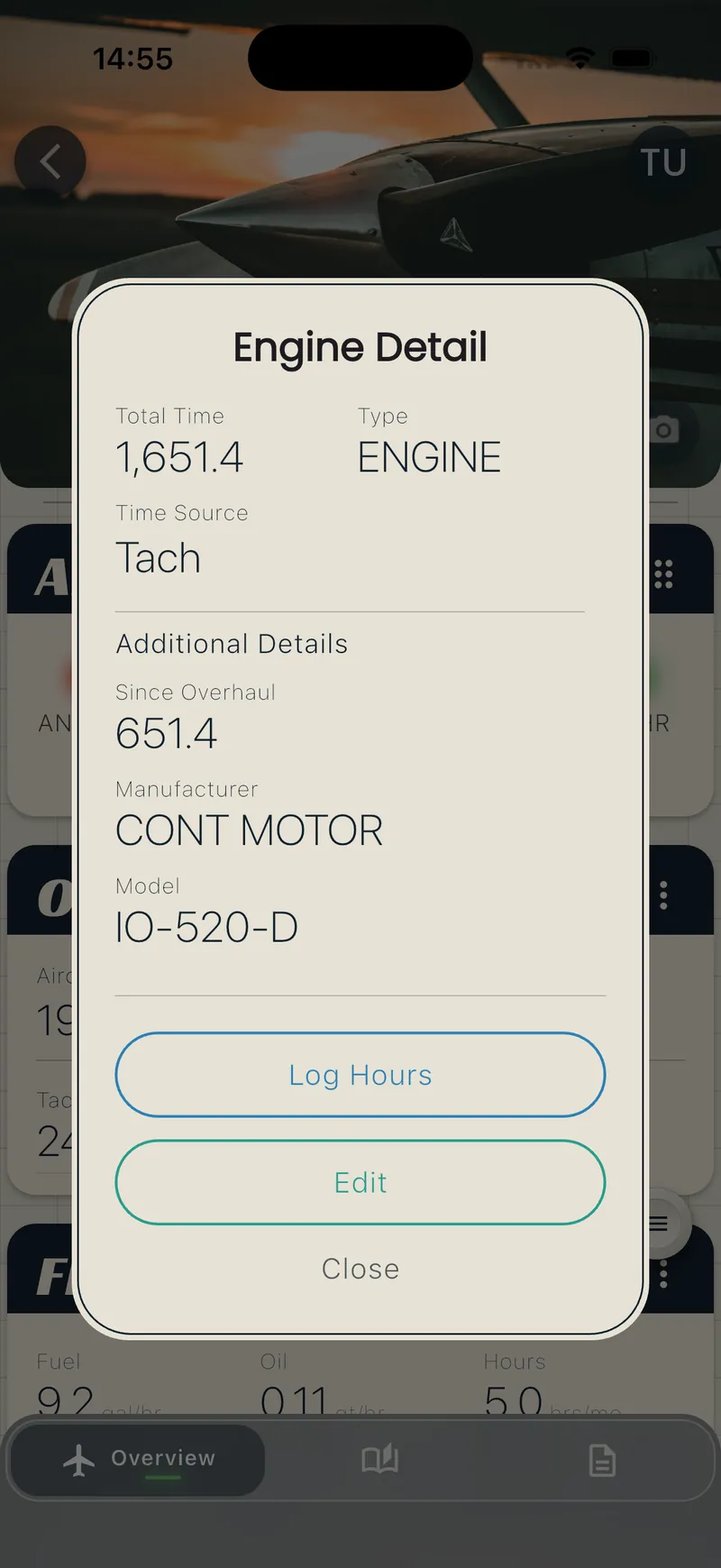
- Tap the component you want to link (for example, Engine or Airframe).
- Tap Edit.
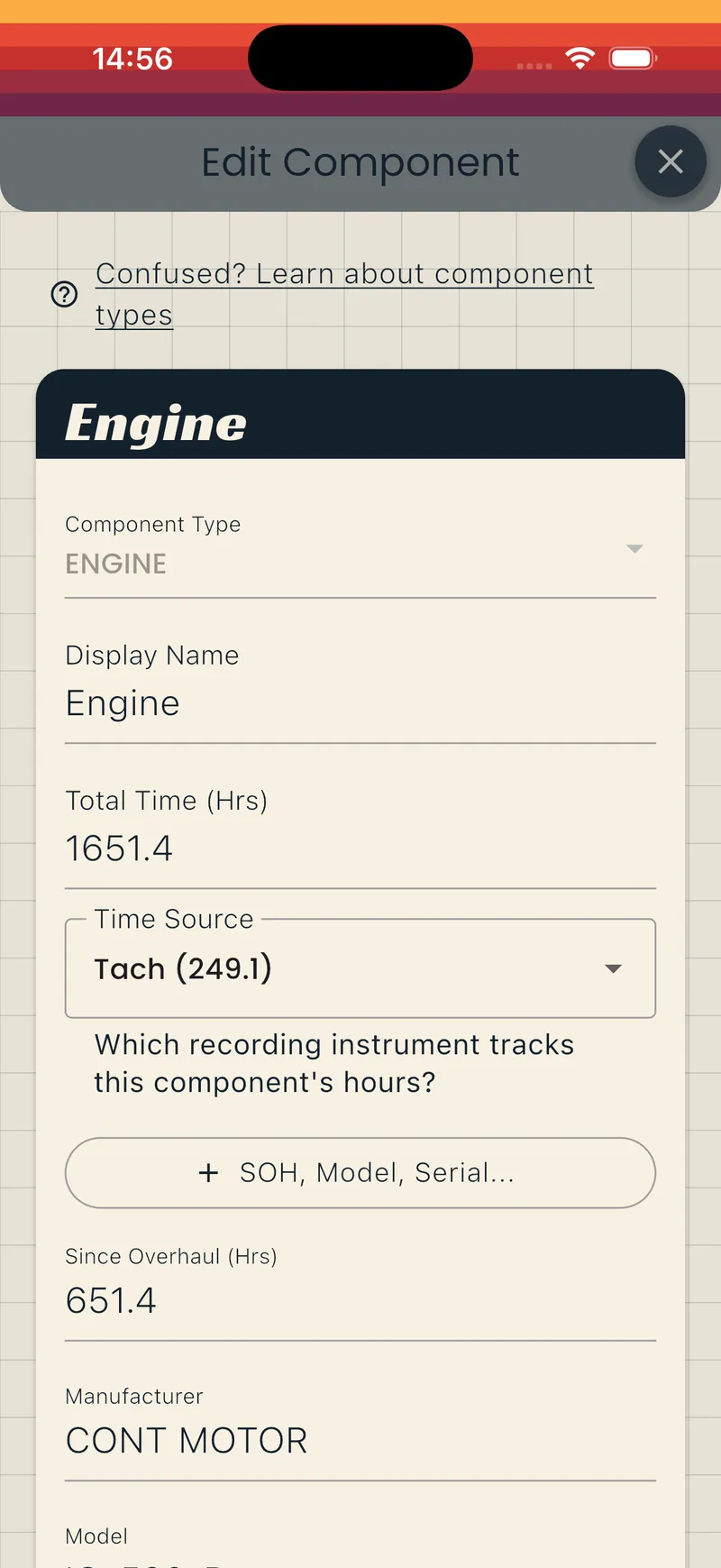
- Open the Time Source dropdown.
- Choose the tach or hobbs that tracks this component.
- Tap Save.
The next time you log hours, this component updates along with the meter.
Choose None (independent) if the component does not follow a meter. An independent component keeps its own total time. Update it manually when needed. The broken-link icon still shows on engine, airframe, and propeller components set to independent, because BetterPlane expects those types to track with a meter.
Setting a time source when you add a component
Section titled “Setting a time source when you add a component”When you add a new engine, airframe, propeller, or other component, the Time Source dropdown appears on the Add a Component screen. BetterPlane pre-selects the tach when the aircraft has exactly one. The auto-link described above applies after you save, even when the dropdown does not pre-select.
See Adding Components for the full procedure.
Spotting unlinked components
Section titled “Spotting unlinked components”Two indicators show that an engine, airframe, or propeller component has no time source:
- On the Overview card: the component shows a broken-link icon next to its name.
- On the Log Hours screen: a banner reads, for example, 3 components not tracked. Tap it to see which ones.
Components of type Other do not show these indicators, because BetterPlane does not require them to track with a meter.
Follow the steps in Linking an existing component to fix each one.
Related pages
Section titled “Related pages”- Adding Components — adding tach, hobbs, engine, and other components
- Tracking Hours — logging flight hours and confirming linked components
- Removing Components — what happens to time-source links when you remove a meter