Alerts
Alerts track your maintenance deadlines, either by date or by engine hours. Set one up for the annual, the registration, or an oil change, and BetterPlane notifies you as it gets close by push, email, or text. The common inspections are built in as templates, and you can create custom ones too.
Built-in templates
Section titled “Built-in templates”Select a template to fill in the name, short code, and default interval automatically.
| Template | Type | Default interval |
|---|---|---|
| Annual Inspection | Date | 12 months |
| Condition Inspection | Date | 12 months |
| Transponder Inspection | Date | 24 months |
| ELT Inspection | Date | 12 months |
| ELT Battery Replacement | Date | 24 months |
| Pitot-Static Inspection | Date | 24 months |
| VOR Check | Date | 30 days |
| FAA Registration | Date | 84 months |
| State Registration | Date | 12 months |
| 100 Hour Inspection | Hours | 100 hours |
| Oil Change - 50hr | Hours | 50 hours |
| Oil Change - 25hr | Hours | 25 hours |
| Mag Inspection - 500hr | Hours | 500 hours |
| Oil Pressure Switch - 3000hr | Hours | 3000 hours |
Creating an alert
Section titled “Creating an alert”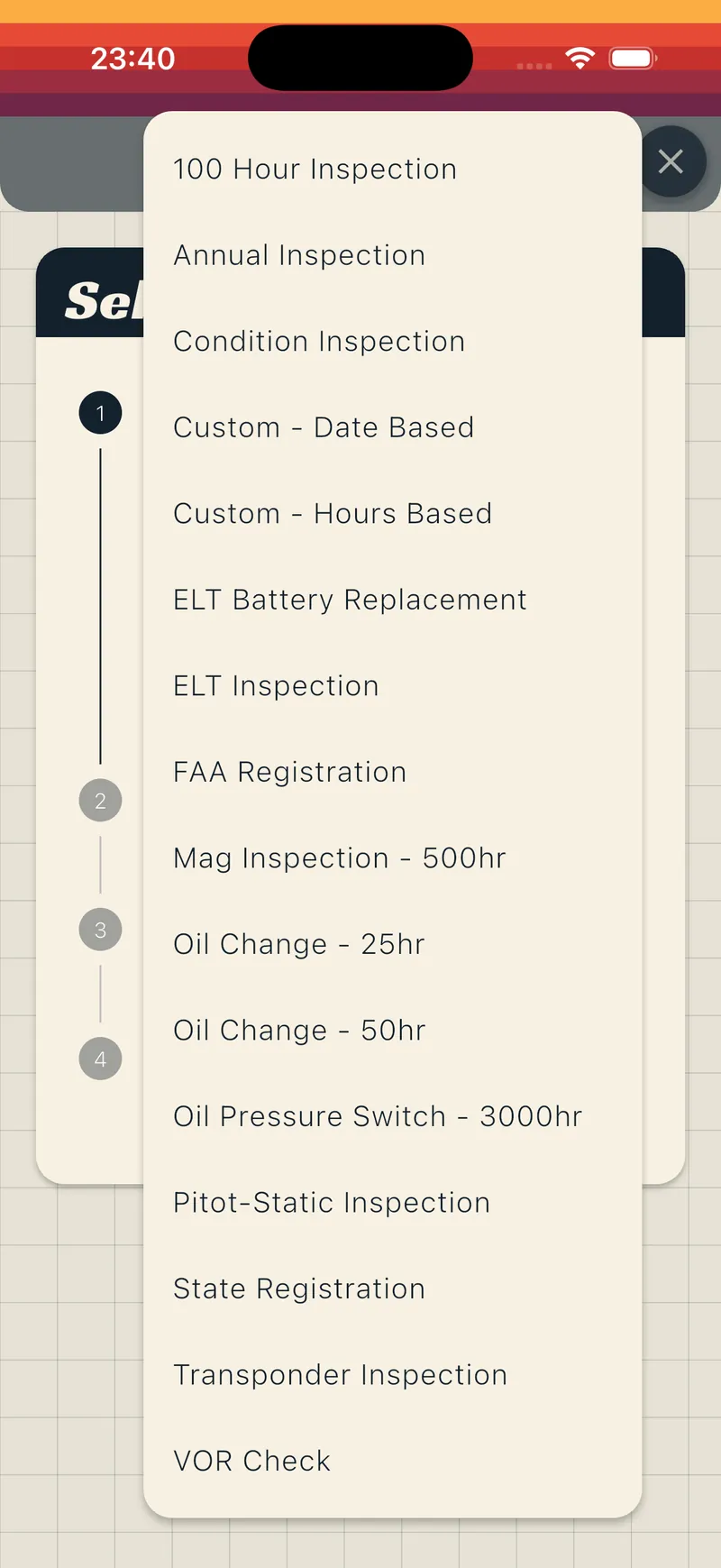
- Open your aircraft and scroll to the tracking list.
- Tap the + button on the Tracking section header.
- Select a template (or “Custom - Date Based” / “Custom - Hours Based”).
- Walk through the four steps: template, details, warning threshold, review.
- On the final step, set the due date or due hours.
- Tap Save.
Alert details
Section titled “Alert details”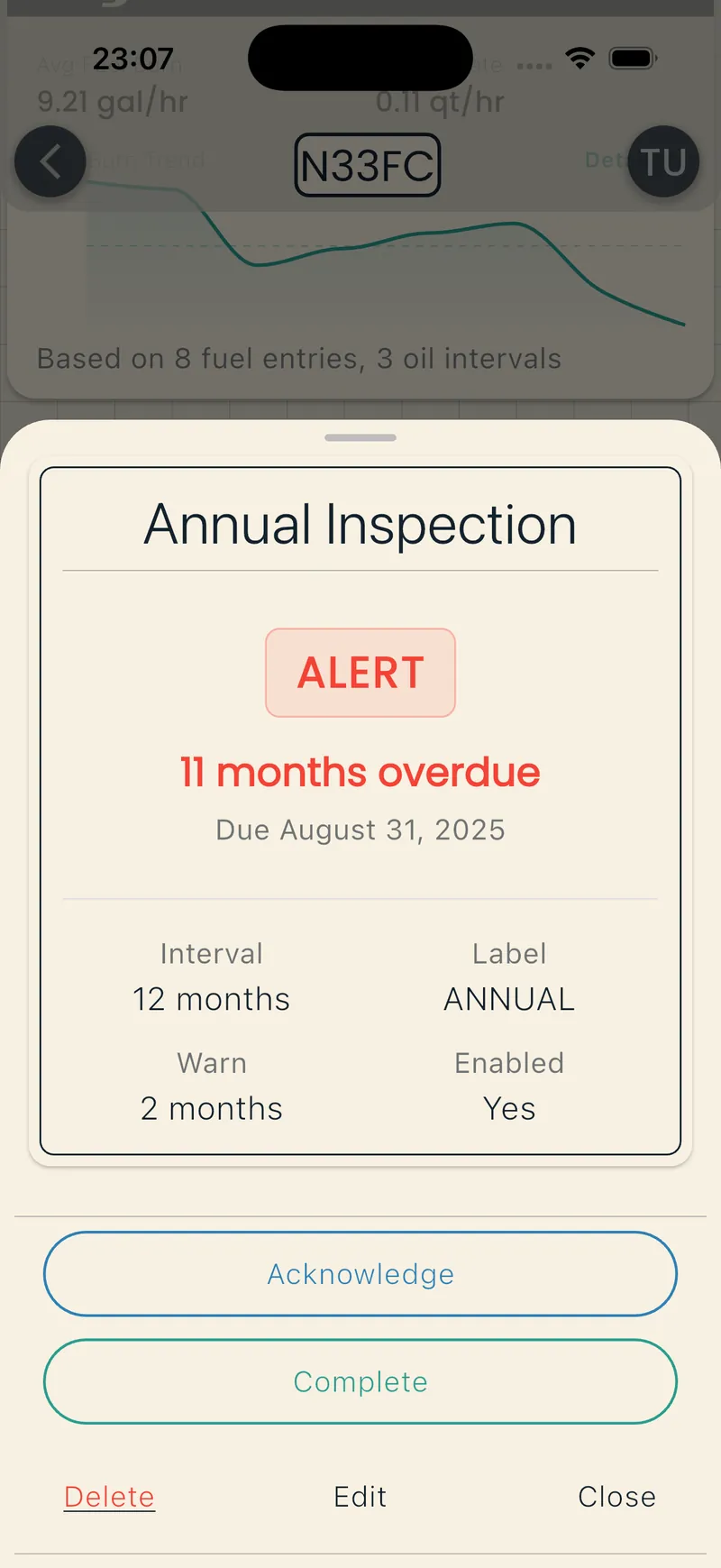
Tap any alert to see its details.
Editing
Section titled “Editing”- Tap the alert, then tap Edit.
- Change the due date, due hours, or other fields.
- Tap Save (or Cancel to discard).
Disabling
Section titled “Disabling”You can turn off an alert without deleting it.
- Tap the alert, then tap Edit.
- Turn off the Enabled switch.
- Tap Save.
A disabled alert stays in your tracking list. Turn the Enabled switch back on to re-enable it.
Acknowledging
Section titled “Acknowledging”Acknowledging pauses notifications. The alert stays visible so you can complete it later.
- Tap the alert, then tap Acknowledge.
- Confirm in the dialog.
Completing
Section titled “Completing”- Tap the alert, then tap Complete.
- For hours-based alerts, confirm or adjust the pre-filled hours.
- “Create next alert” is checked by default. Uncheck it for one-time events.
- Tap Complete to confirm.
If “Create next alert” is checked, the next alert auto-creates with the due value moved forward.
Deleting
Section titled “Deleting”- Tap the alert, then tap Delete.
- Tap Yes, Delete to confirm.
This cannot be undone. To turn off an alert instead of deleting it, see Disabling.
Annunciator Panel
Section titled “Annunciator Panel”The Annunciator panel sits on your aircraft’s overview screen, above the tracking list. It shows one colored light for each alert.
Locating an alert
Section titled “Locating an alert”- Open your aircraft.
- Tap a light in the Annunciator panel. BetterPlane scrolls the tracking list to that alert and highlights it.
Reordering the lights
Section titled “Reordering the lights”The reorder icon appears only when the aircraft has two or more alerts.
- Tap the reorder icon in the Annunciator panel header.
- Press and hold a light until it lifts, then drag it to a new position. Or tap one light, then tap a second light to swap them.
- Tap the checkmark icon to save the new order, or tap the cancel icon to discard your changes.
If you made changes before you tap the cancel icon, BetterPlane asks you to confirm before it discards them. While you reorder, the panel shows “DRAG OR TAP TWO LIGHTS TO SWAP” below the lights. Otherwise it shows “TAP TO LOCATE”.
Sorting
Section titled “Sorting”Sort the tracking list:
- Priority: most urgent first. Overdue and warning alerts come before on-track ones. Ties break by proximity to the due value.
- Name: alphabetical.
- Added: creation date.
Text message notifications
Section titled “Text message notifications”Turn on text message alerts with the Text Message switch in Hangar Settings (see Hangar Settings).